Activity for User 90 - Georgianne Giese - georgiannegiese@gmail.com

avatar
Avatar

Close this Tab when done


684 Comments / 219 Replies Posted

  = Current Round   = Previous Round
Group Round C/R Comment Date Image
77 Sep 24 Reply Perhaps you could try enlarging the background by using PS Crop too with Content Aware Fill selected via the box at the top of the image space. Here is an alternative.

I used PS filter Color Efex Pro. Inside of Photoshop, I used the Crop tool with the Content Aware (top right dropdown seleced). That expanded the top and the right side of the image. Then I went into PS filters, selected NIK collection 6 folled by NIK 6Color/efex. Then I used the Darken/Lighten and the procontrast presets to slightly lighten the lock center, while keeping the surounding background dark.


Sep 13th
77 Sep 24 Reply Thank you Denise. I am fond of antique pictures too. Sep 13th
77 Sep 24 Comment This is an excellent image of a common day object! I do love the image. Your image adjustments also made a slight case of roughness to the image, which in itself enhances the story of the subject.

My only comment is that you might consider stretching your background, so that the subject is slightly smaller.

Great artistic image!
Sep 9th
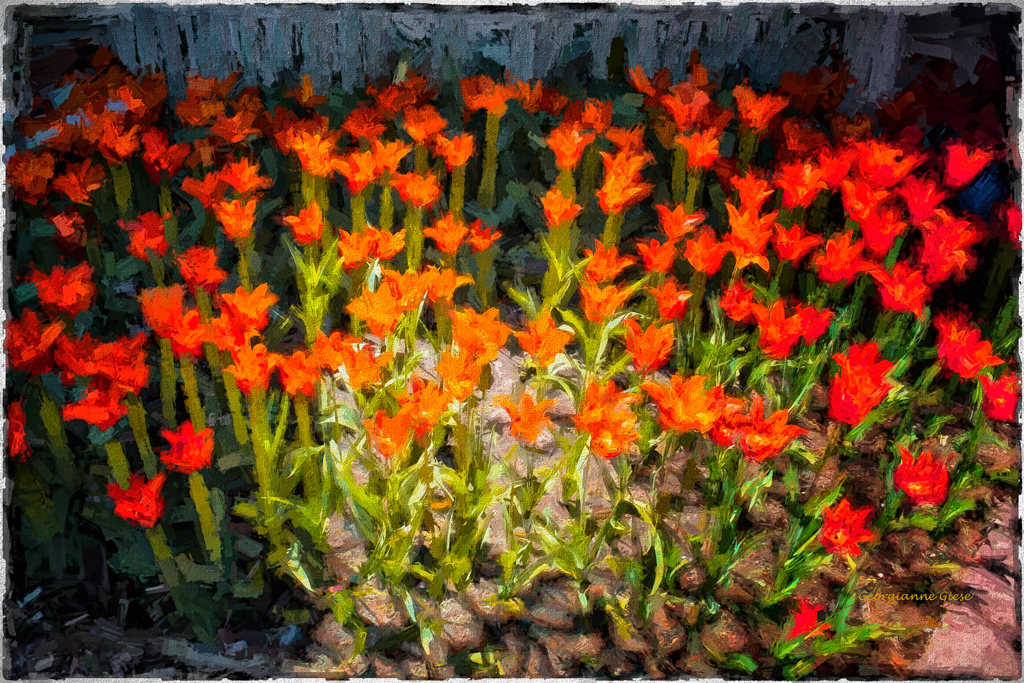
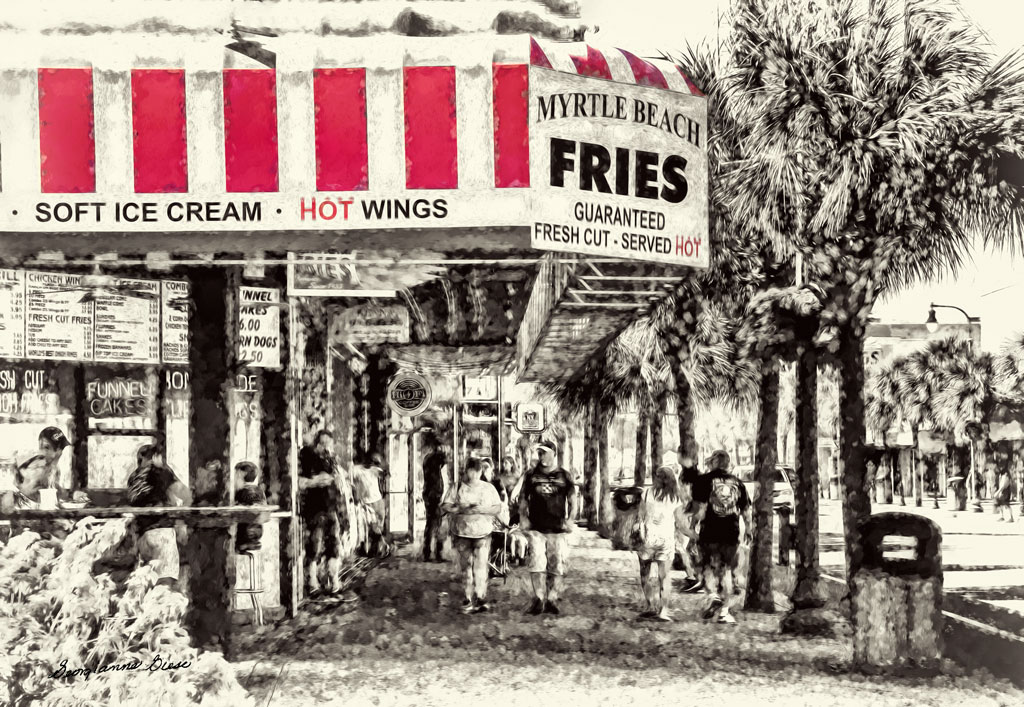
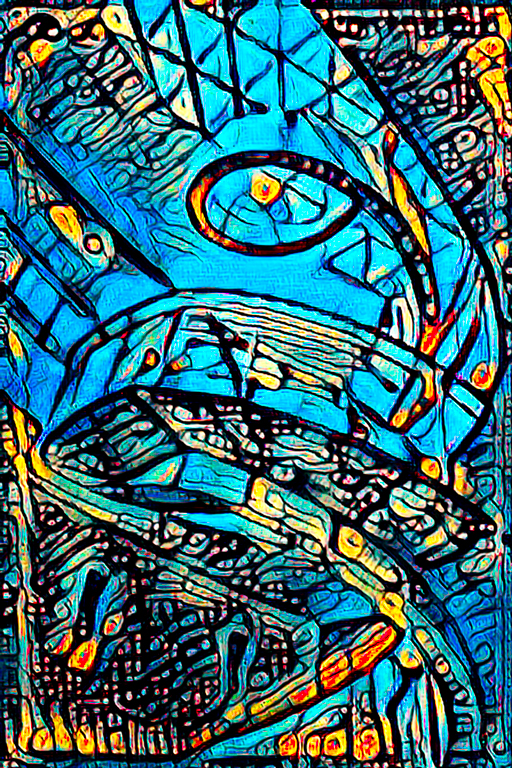
77 Sep 24 Comment You certainly made these images look like a chalk drawing! I think that the May image is more to my liking. It seems to have a lot of movement in it whereas this months image does not bring a sense of movement to me.

I wonder if changing the tonality of the colors would add more interest to the image and add depth. The colors here all have equal impact.

Good luck with your contests and congratulations on that First Place!
Sep 9th
77 Sep 24 Comment That is a very special time for many. The contrast between the sculpture and sky, works well. The angle of the shot added to the photo.

This image would work well in monochrome. I couldn't help playing with it.

I took the photo into Topaz B&W. I chose the Stylized Collection and then the Blue filter. I adjusted the Color Sensitivity slide and the Basic Exposure slides, until I got the softness as well as the definition of the sculpture.

After saving and duplicating the layer, applied a B&W Adjustment layer to eliminate the slight colors in the sky that shown through from the Stylized Collection of Topaz B&W.

I went into Topaz Impressions 2 and chose the softening and outlining of Swirly Strokes III preset.
Sep 9th
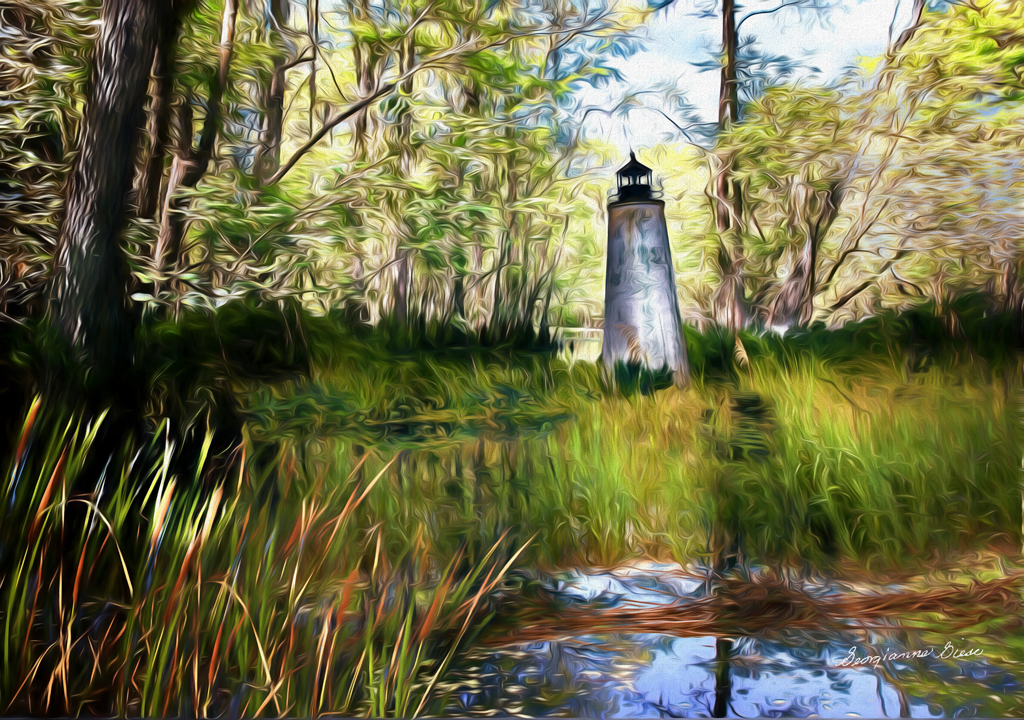
77 Sep 24 Comment I love this image Jan. The coloring is really good, in my opinion. Graphically, the grass matches the trees so the lines of the picture harmonize. he subject is well placed in the left third of the image.

There is one thing that might maximize the impact of the image. That is to very slightly accentuate the trees. That would decrease the possibility of the viewer missing the fact that there are trees in the background, rather than just texturizing in Photoshop.

Great job! It must have been very gratifying to see this image come together so well!
Sep 9th

4 comments - 2 replies for Group 77


4 comments - 2 replies Total


120 Images Posted

  = Current Round   = Previous Round
Group 34

Feb 22

Jan 22

Nov 21

Oct 21

Sep 21

Aug 21

Jul 21

Apr 21

Mar 21

Feb 21

Jan 21

Nov 20

Oct 20

Sep 20

Aug 20

Jul 20

Jun 20

May 20

Apr 20

Mar 20

Feb 20

Jan 20

Dec 19

Nov 19

Oct 19

Sep 19

Aug 19

Jul 19

Jun 19

May 19

Apr 19

Mar 19

Feb 19

Jan 19

Dec 18

Nov 18

Sep 18

Aug 18

Jul 18

Jun 18

May 18

Apr 18

Mar 18

Feb 18

Jan 18

Dec 17

Nov 17

Oct 17

Sep 17

Aug 17

Jul 17

Jun 17

Apr 17

Mar 17

Feb 17

Jan 17
Group 77

Apr 26

Mar 26

Feb 26

Jan 26

Nov 25

Oct 25

Sep 25

Aug 25

Jul 25

Jun 25

May 25

Apr 25

Mar 25

Feb 25

Jan 25

Nov 24

Sep 24

Aug 24

Jul 24

Jun 24

May 24

Apr 24

Mar 24

Feb 22

Jan 22

Nov 21

Oct 21

Sep 21

Aug 21

Jul 21

Apr 21

Mar 21

Feb 21

Jan 21

Dec 20

Nov 20

Sep 20

Aug 20

Jul 20

Jun 20

May 20

Apr 20

Mar 20

Feb 20

Jan 20

Dec 19

Nov 19

Oct 19

Sep 19

Aug 19
Group 83

Aug 20

Jul 20

Jun 20

May 20

Apr 20

Mar 20

Feb 20

Jan 20

Dec 19

Nov 19

Oct 19

Sep 19

Aug 19

Jul 19

Close this Tab when done