Activity for User 146 - Bob Benson - benson.bob@comcast.net

avatar
Avatar

Close this Tab when done


589 Comments / 119 Replies Posted

  = Current Round   = Previous Round
Group Round C/R Comment Date Image
26 Dec 17 Reply When I stated you can go to the inner circle on the brush, you can actually go all the way towards the center of the brush, as long as the center cross of the brush does not cross the lines. Here is an example. I purposely lowered the white value too, so the highlights in that area turned blue-gray. Might be a little too much, but otherwise you are left with the bright window light still showing. Dec 18th
26 Dec 17 Reply In the Develop module pick the Adjustment Brush at the top right. From the choices below, turn down the exposure and highlights. pick a smaller brush size and turn feathering all the way up. Make sure Auto Mask is selected, and paint within the lines. (As long as you do not go beyond the inner circle of the brush, it should easily select that brighter area, as it seems to have fairly good defined lines. Don't worry about it looking overdone at this point. (In fact, having too harsh of settings makes it easier to see what you are doing.) Use the erase brush option if you have to do any corrections. Once you have the selection, play with the brush sliders until the result looks reasonable, and not "cooked".
This is probably your best tool here. If that had been the only blue in your image, you could have used the Luminance sliders in the HSL panel.
Dec 18th
26 Dec 17 Comment I also think the cropped version is better, creating a dynamic between the 2 hippos. While the hippo in-between is not too distracting, cloning, as you suggested, will help; it then eliminates one minor issue for someone to consider. You might also consider burning the very top somewhat, especially the darker trees on the left side. Dec 17th
26 Dec 17 Comment Agree with above comments. You might also consider applying a slight vignette (or increasing it slightly if you have already done that). Dec 17th
26 Dec 17 Comment When I first glanced at the image, I thought you had sent a blurry image by mistake. After looking at it, I like the effect, but think you need to enhance it some more to make it more obvious. The filters in PS like Distort>Ripple, or Twirl, come to mind. Dec 17th
26 Dec 17 Comment I agree with Jose. You make the clone look natural (and still look like highlights) by having the clone on a separate layer, and using reduced opacity. Dec 17th
26 Dec 17 Comment I agree with Mervyn that you should selectively tone down the bright blue on the left, and with Jose about straightening the right side. The right side really makes this image shine. Dec 17th
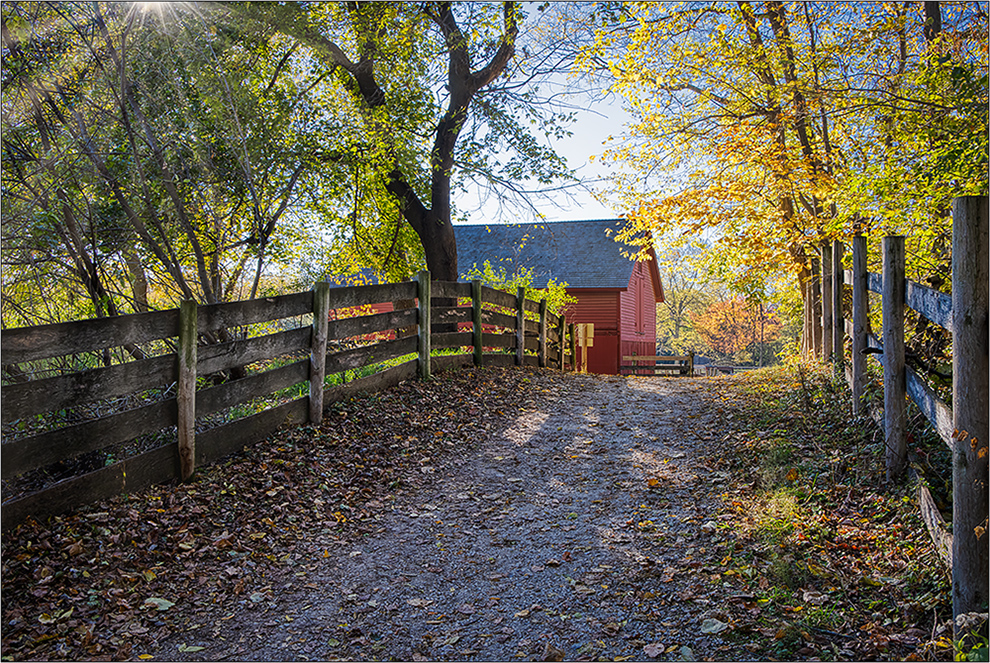
26 Dec 17 Reply I like your new version, but would suggest toning down the fall colors just a bit, as they seem a little too vibrant. Dec 17th

5 comments - 3 replies for Group 26


5 comments - 3 replies Total


111 Images Posted

  = Current Round   = Previous Round
Group 26

Apr 26

May 26

Mar 26

Feb 26

Jan 26

Dec 25

Nov 25

Oct 25

Sep 25

Aug 25

Jun 25

May 25

Apr 25

Mar 25

Feb 25

Jan 25

Dec 24

Nov 24

Oct 24

Sep 24

Aug 24

Jul 24

Jun 24

May 24

Apr 24

Mar 24

Feb 24

Jan 24

Dec 23

Nov 23

Oct 23

Sep 23

Aug 23

Jul 23

Jun 23

May 23

Apr 23

Mar 23

Feb 23

Jan 23

Dec 22

Nov 22

Oct 22

Sep 22

Aug 22

Jul 22

Jun 22

May 22

Apr 22

Mar 22

Feb 22

Jan 22

Dec 21

Nov 21

Oct 21

Sep 21

Aug 21

Jul 21

Jun 21

May 21

Apr 21

Mar 21

Feb 21

Jan 21

Dec 20

Nov 20

Oct 20

Sep 20

Aug 20

Jul 20

Jun 20

May 20

Apr 20

Mar 20

Feb 20

Jan 20

Dec 19

Nov 19

Oct 19

Sep 19

Aug 19

Jul 19

Jun 19

May 19

Apr 19

Mar 19

Feb 19

Jan 19

Dec 18

Nov 18

Oct 18

Sep 18

Aug 18

Jul 18

Jun 18

May 18

Apr 18

Feb 18

Jan 18

Dec 17

Nov 17

Oct 17

Sep 17

Aug 17

Jul 17

Jun 17

May 17

Apr 17

Mar 17

Feb 17

Jan 17

Close this Tab when done