|
| Group |
Round |
C/R |
Comment |
Date |
Image |
| 78 |
Nov 24 |
Reply |
In the original, the lower right corner was quite dark, and I lightened it because to me, it seemed to conflict with the feel of the rest of the picture. It is helpful to read that such a feeling is not universal. |
Nov 15th |
| 78 |
Nov 24 |
Reply |
I agree, it does feel very natural in a square format. Thank you. |
Nov 15th |
| 78 |
Nov 24 |
Reply |
The result of your somewhat subtle changes is an image that, to me, is most comfortable to look at. Thank you. |
Nov 15th |
| 78 |
Nov 24 |
Reply |
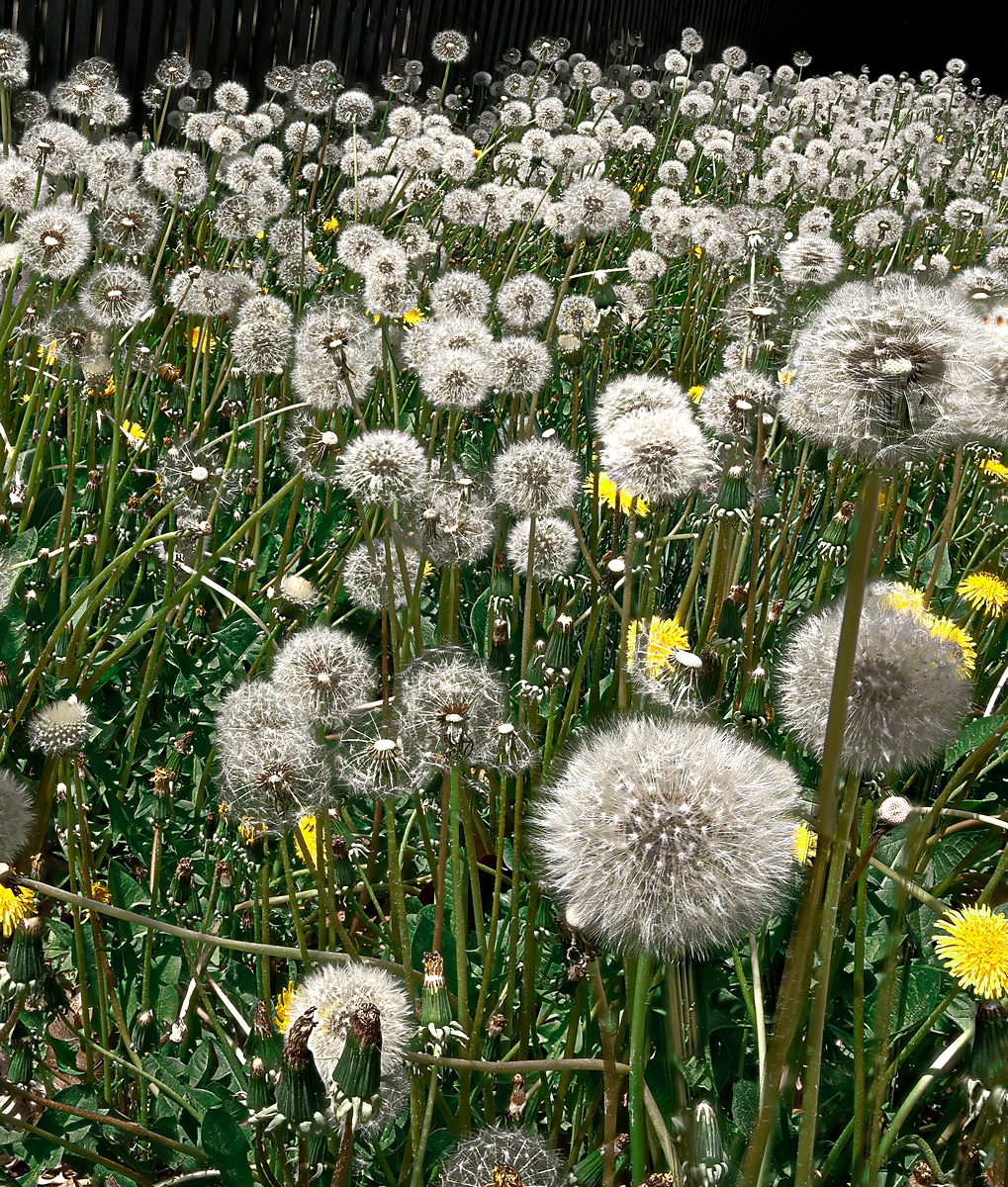
What an unusual effect. Thanks for showing it. |
Nov 7th |
| 78 |
Nov 24 |
Comment |
I like this a lot, and while I prefer to "take" good images and not "make" them, despite all that you described, I don't think that your editing has changed what you were seeing in your mind's eye as you took it. I prefer your treatment of the rock column whereas in Brenda's version, to me it feels unnaturally bright in view of the illumination everywhere. I am a little perplexed however by the fact that in your original and in your processed image, the sun seems to be to the right of the rock column, but the trees below the rock seem to be illuminated from the left. |
Nov 3rd |
| 78 |
Nov 24 |
Comment |
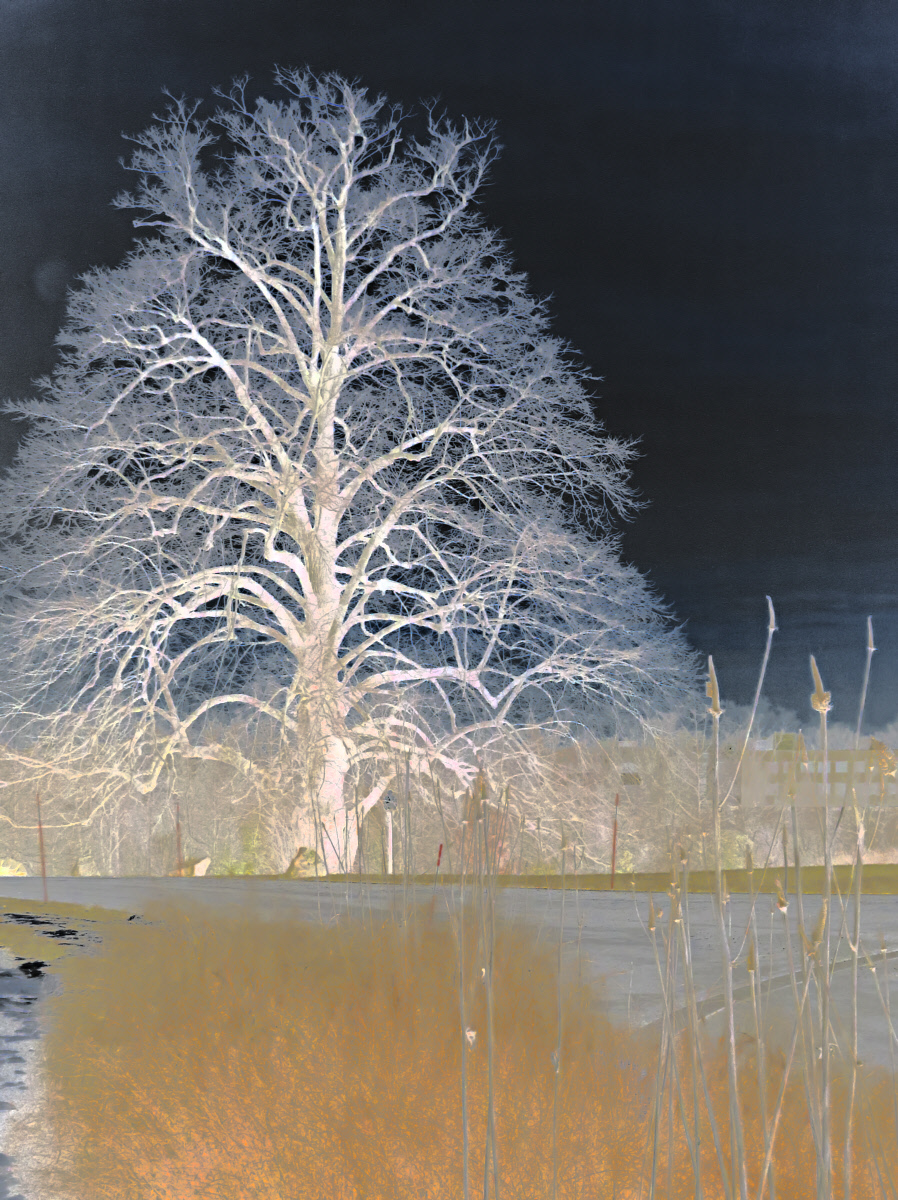
I like the more blue cast to the image. Actually, I find the original image to be very interesting as it makes me stop and ponder just what is going on. |
Nov 3rd |
| 78 |
Nov 24 |
Comment |
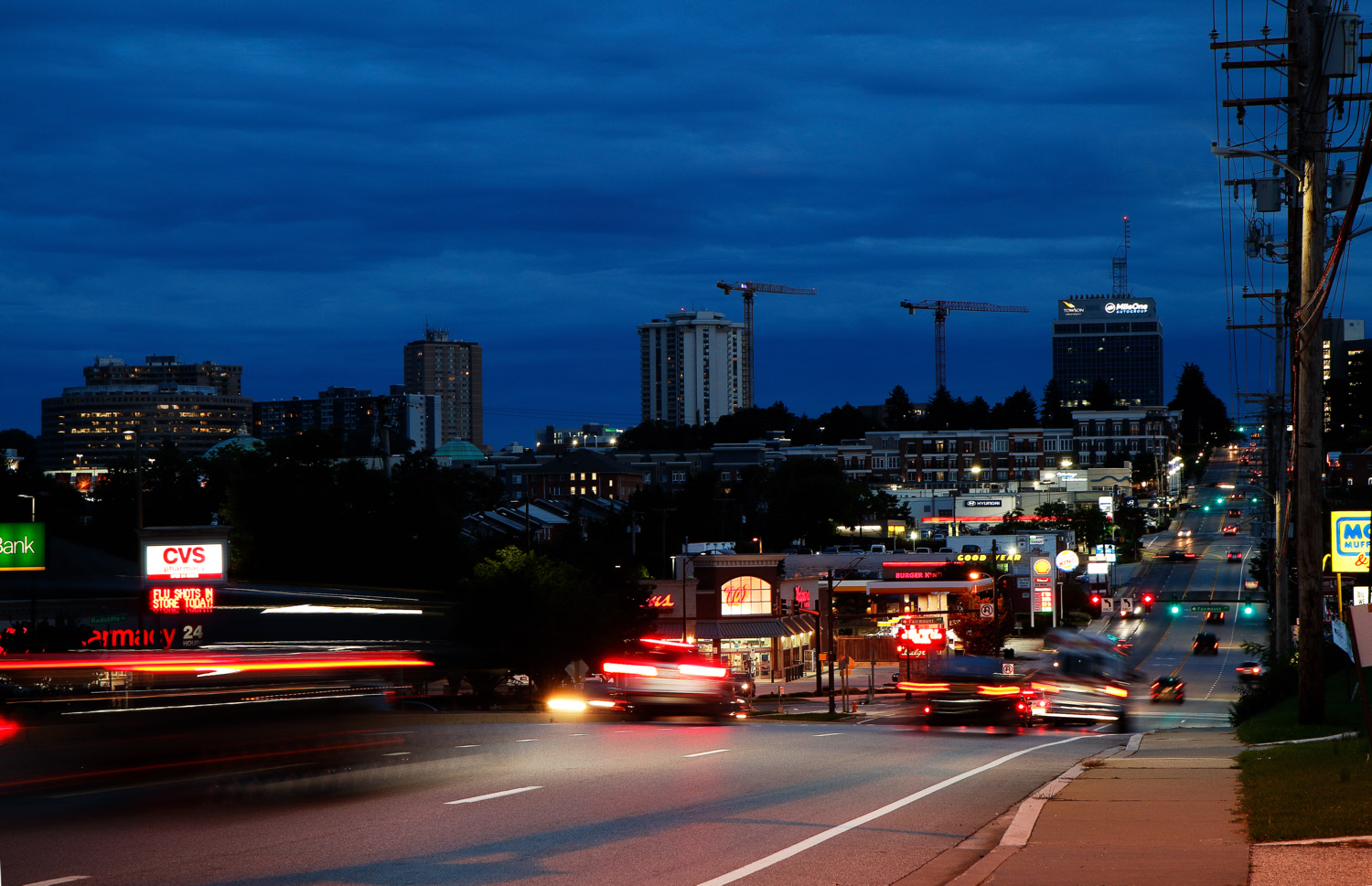
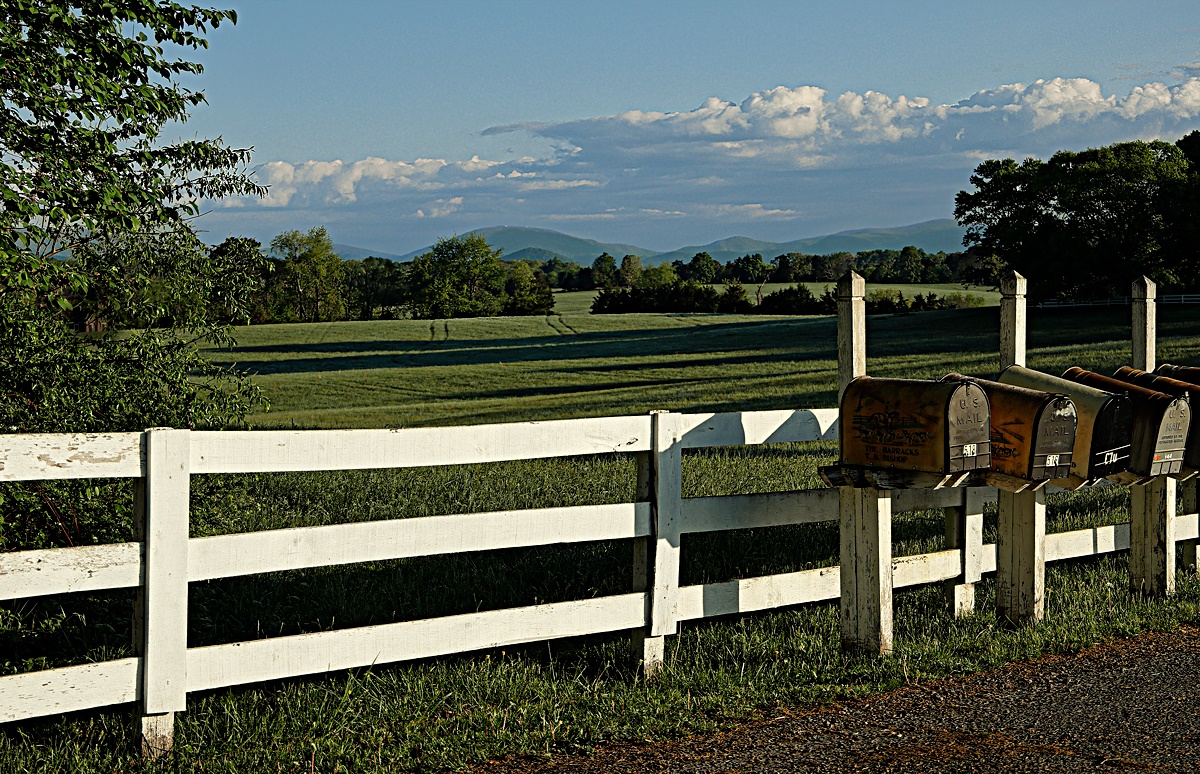
It seems like your objective was to show the quiet calmness of the village. Perhaps showing the New York skyline would have emphasized the difference between the village and NYC. Showing part of an empty street might also emphasize the difference. Since the bridge or elevated highway may not be an integral part of the story, perhaps there is a nearly equivalent photo that lacks the bridge? Is the water ever this blue? |
Nov 3rd |
| 78 |
Nov 24 |
Comment |
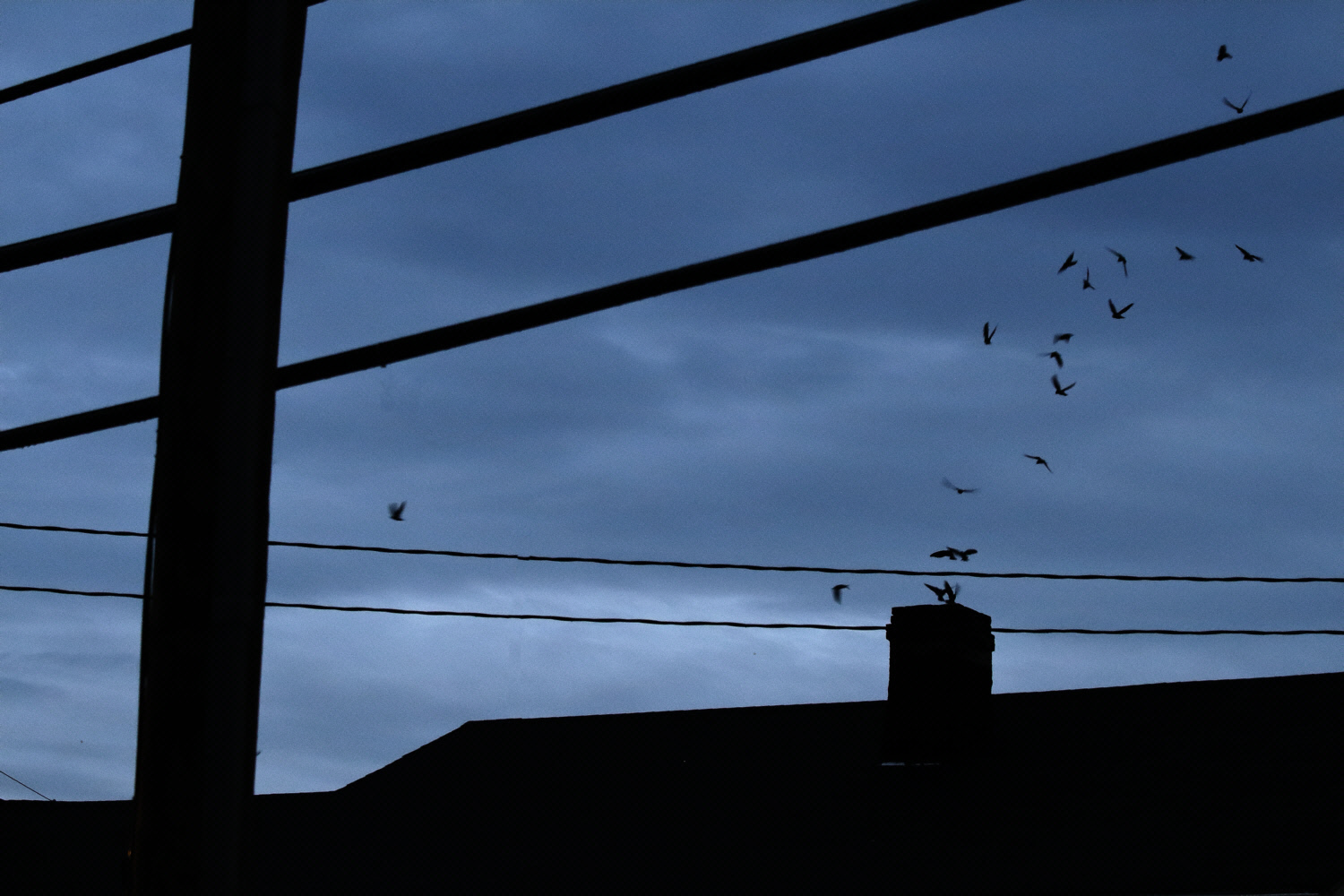
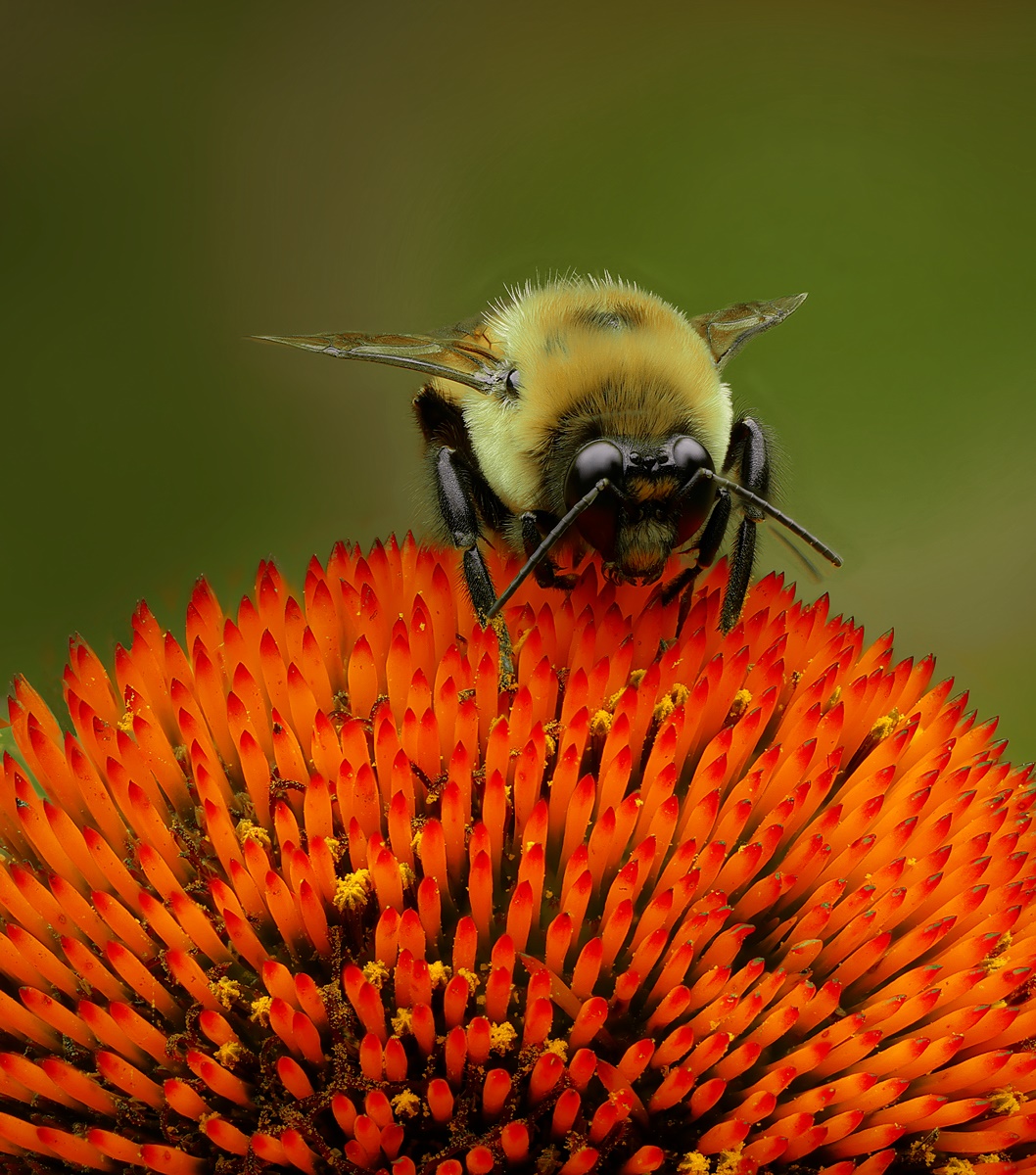
Before I read Brenda's comments my thoughts were that the bird was too inconspicuous. Her approach capitalizes on the bird's near invisibility. Lacking a series of camouflaged animals, perhaps a title for this could be "Where's Waldo?" |
Nov 3rd |
| 78 |
Nov 24 |
Comment |
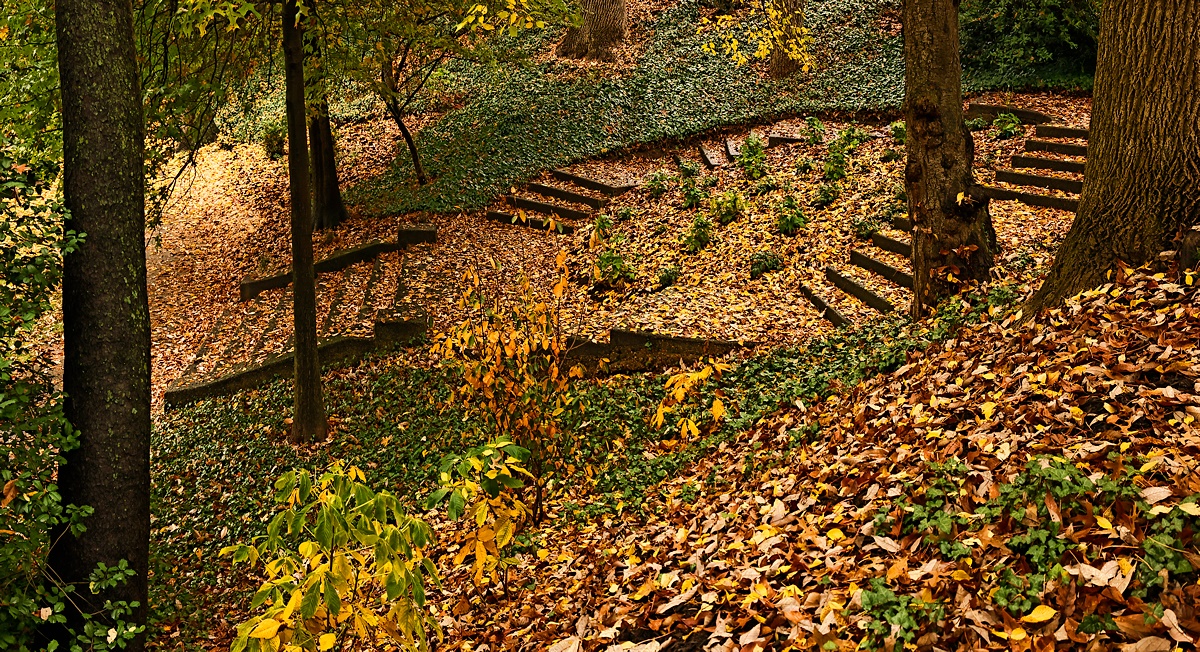
It is an interesting subject. To me, the trees looked better in the original. Their lighting in your final image feels unnatural. Also to me, the composition of your final image feels almost too good to be true. |
Nov 3rd |
| 78 |
Nov 24 |
Comment |
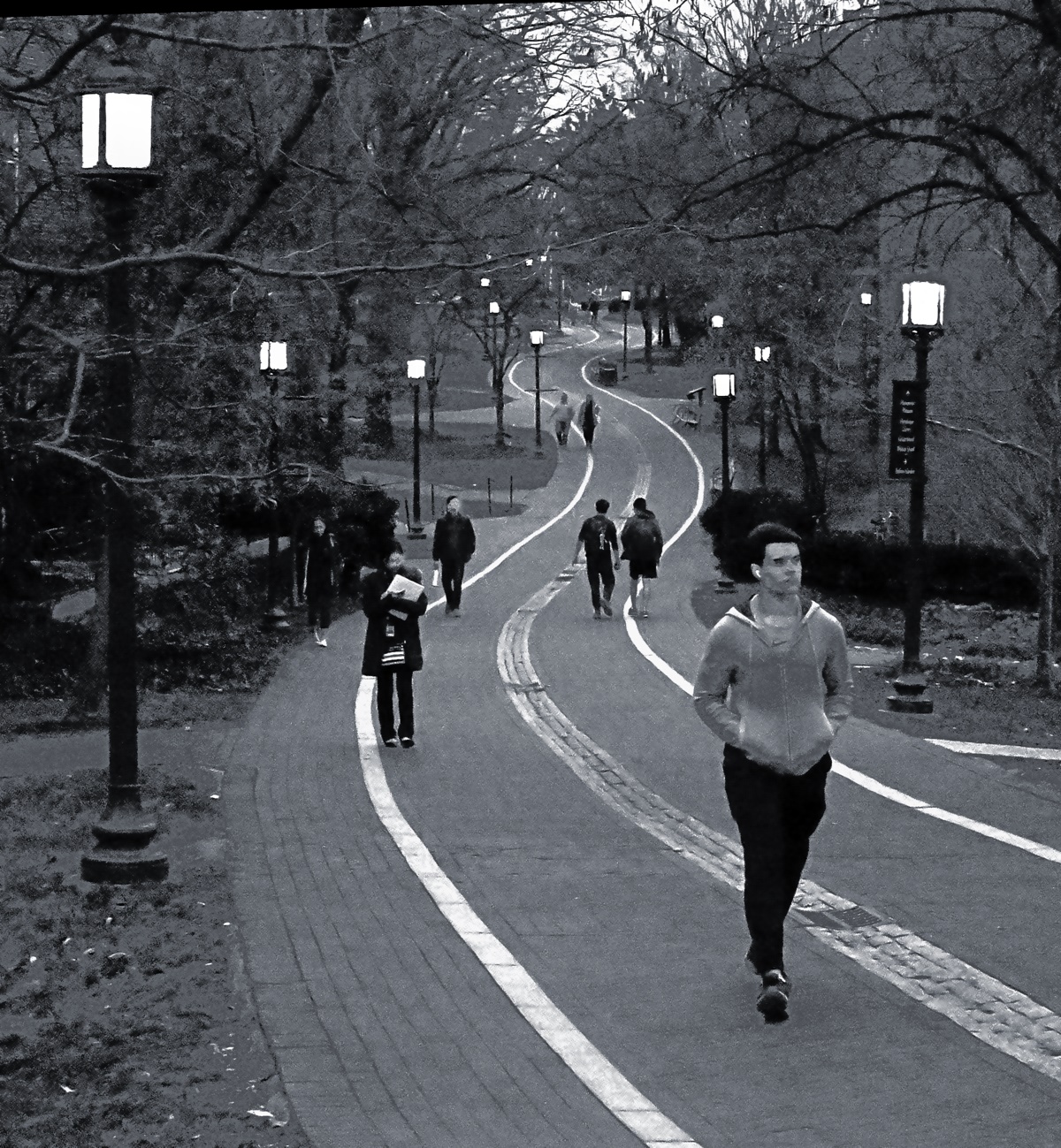
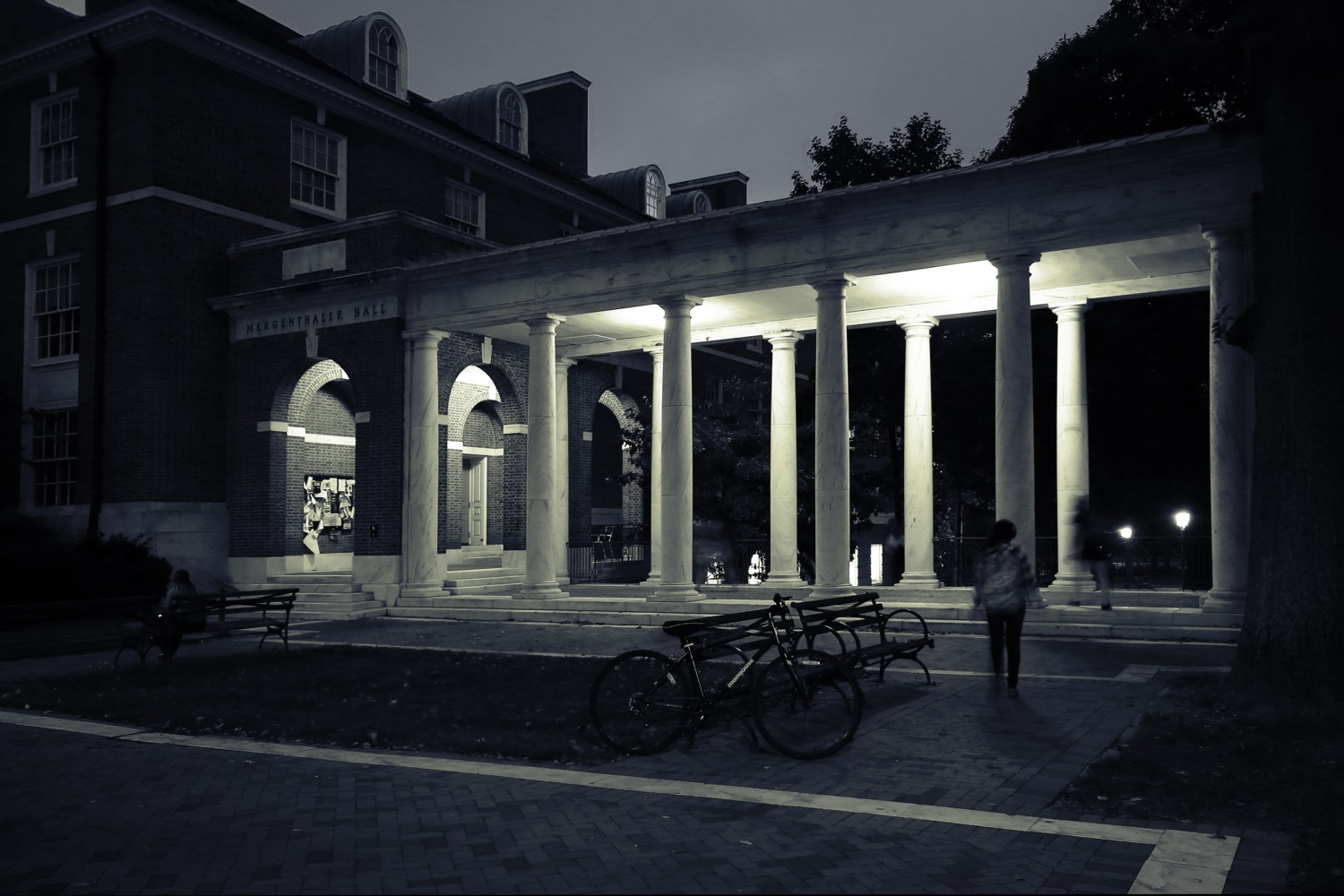
Your editing, darkening the floor, removing some of the lamps, and the cropping all helped the image. It is a very interesting subject and a nice photograph of it. I have no suggestions. |
Nov 3rd |
| 78 |
Nov 24 |
Comment |
Thank you for showing your vision on this scene. |
Nov 2nd |
| 78 |
Nov 24 |
Comment |
Since writing the above about using the iPhone camera and about iPhone pictures, I've learned more, and the following could be useful to others.
A bit of web searching revealed that using just the apps that come with the more recent iPhones, what is called "raw" has actually been processed for HDR and low light situations and is then saved in DNG format. Such files can be copied elsewhere and used. If such a "raw" file is exported, say by emailing, the DNG "raw" file will first be converted to jpg.
For the highest resolution and greatest versatility, one's iPhone camera settings should be, Settings/Formats/Camera/ProRAW & Resolution Control--On/ProRAW Max/ (up to 48 MP). This is only available in the Photo mode, not portrait or pano. When taking a picture, after opening the Camera app, it is necessary to turn on RAW MAX by touching the RAW MAX label in the upper right.
To transfer an image from an iPhone to a PC, first open and connect the iPhone to the PC with a USB cable. Open the Photos app on the PC (is automatically installed when Windows 11 is installed). In the Photos app, in the upper right, select "Import", and from the drop down menu select "Apple Phone". Soon the Photos app will display the images stored on the iPhone Photos folder. Select those for transfer, in the upper right select "Add items". Select the target folder (on the PC) in the window that appears. Finally select "Import" at the bottom of the target window. |
Nov 1st |
8 comments - 4 replies for Group 78
|
8 comments - 4 replies Total
|